Страница 1
™MY PASSPORT ULTRA Portable Hard Drive User Manual
Читать страницу
Карточка инструкции: Внешний HDD WD My Passport Ultra. Документ содержит 41 страницу. Раздел: Western Digital. Бренд: HDD. Доступны оглавление, просмотр по страницам и PDF для скачивания.
Раздел: ПК, ноутбуки, периферия / Периферия и аксессуары / Внешние накопители данных / Внешние жесткие диски / Western Digital
Бренд: HDD
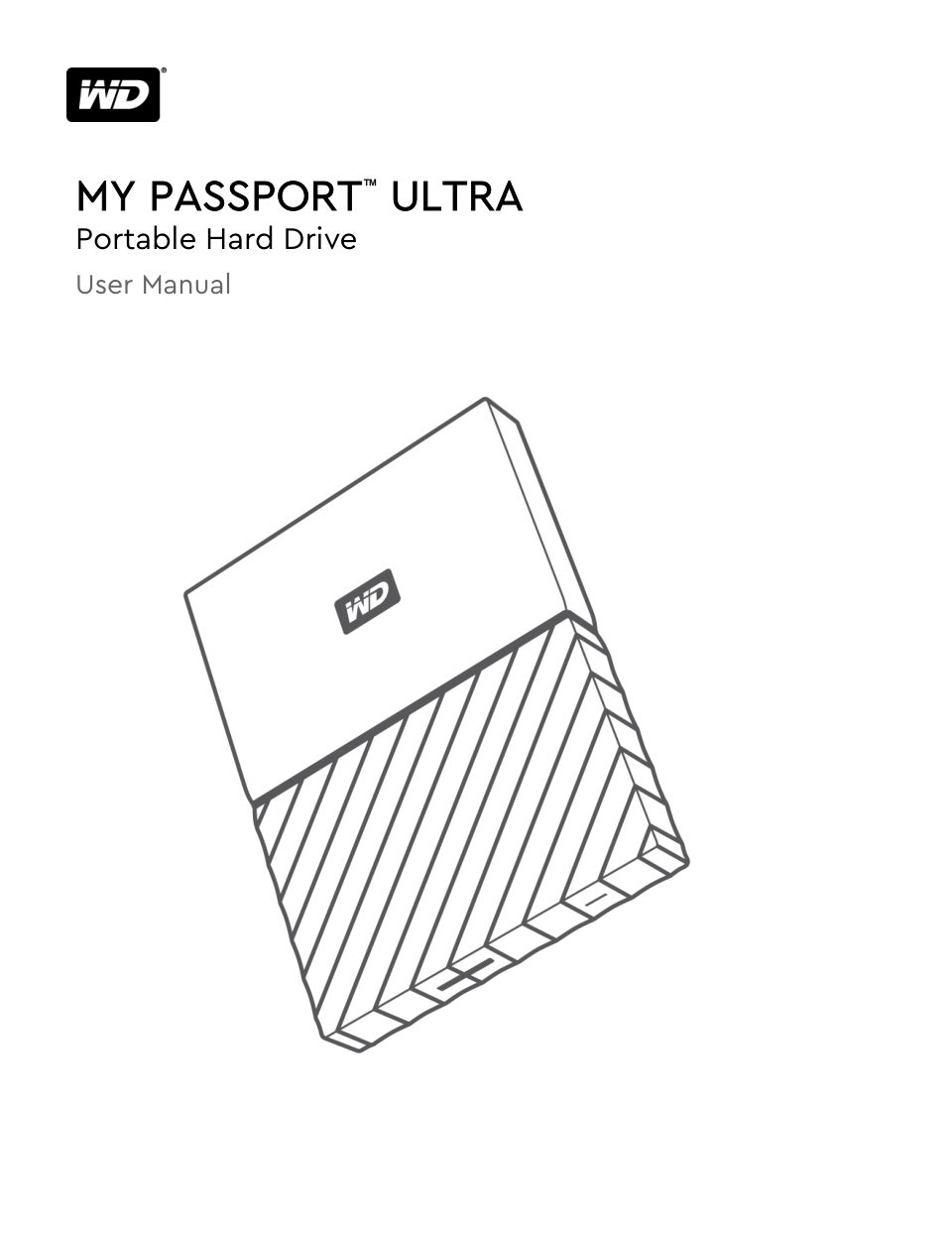
™MY PASSPORT ULTRA Portable Hard Drive User Manual
Читать страницуAccessing Online Support Visit our product support website at http://support.wdc.com and choose from these topics: ▪ Downloads — Download software and updates for your WD product ▪ Registration — Register your WD produc…
Читать страницуAbout Your WD Drive 1 About Your WD Drive Welcome to your My Passport Ultra™ portable hard drive. This drive offers high capacity in a sleek portable device. It features ultra-fast USB 3.0 connectivity, local and cloud…
Читать страницуAbout Your WD Drive Kit Contents As shown in figure 1, your My Passport Ultra drive kit includes the following: Figure 1: My Passport Ultra Portable Hard Drive Kit Components ▪My Passport Ultra portable hard drive, with…
Читать страницуAbout Your WD Drive Disk Drive Format Your My Passport Ultra drive is formatted as a single NTFS partition for compatibility with all updated Windows operating systems. If you want to use the drive with a Mac computer,…
Читать страницуAbout Your WD Drive Registering Your Drive Always register your My Passport Ultra drive to get the latest updates and special offers. You can easily register your drive using the WD Discovery software. Another way is to…
Читать страницуConnecting the Drive and Getting Started 2 Connecting the Drive and Getting Started This chapter provides instructions for connecting the drive and installing the WD software on your computer. It includes the following…
Читать страницуConnecting the Drive and Getting Started 2. Click Next to display the Installation Type dialog: 3. On the Installation Type dialog: a. Select the option that you want to use for the installation: ▪ Recommended Install—I…
Читать страницу