Страница 1
Amazfit Bip 6 User Manual Connection and pairing Use your phone to scan the QR code in the manual or on the device, and download and install the Zepp app. For a better user experience, update the app to the latest versi…
Читать страницу
Карточка инструкции: Смарт-часы Amazfit Bip 6. Документ содержит 35 страниц. Раздел: Смарт-часы и браслеты. Бренд: Amazfit. Доступны оглавление, просмотр по страницам и PDF для скачивания.
Раздел: Смартфоны и фототехника / Смартфоны и гаджеты / Смарт-часы и браслеты
Бренд: Amazfit
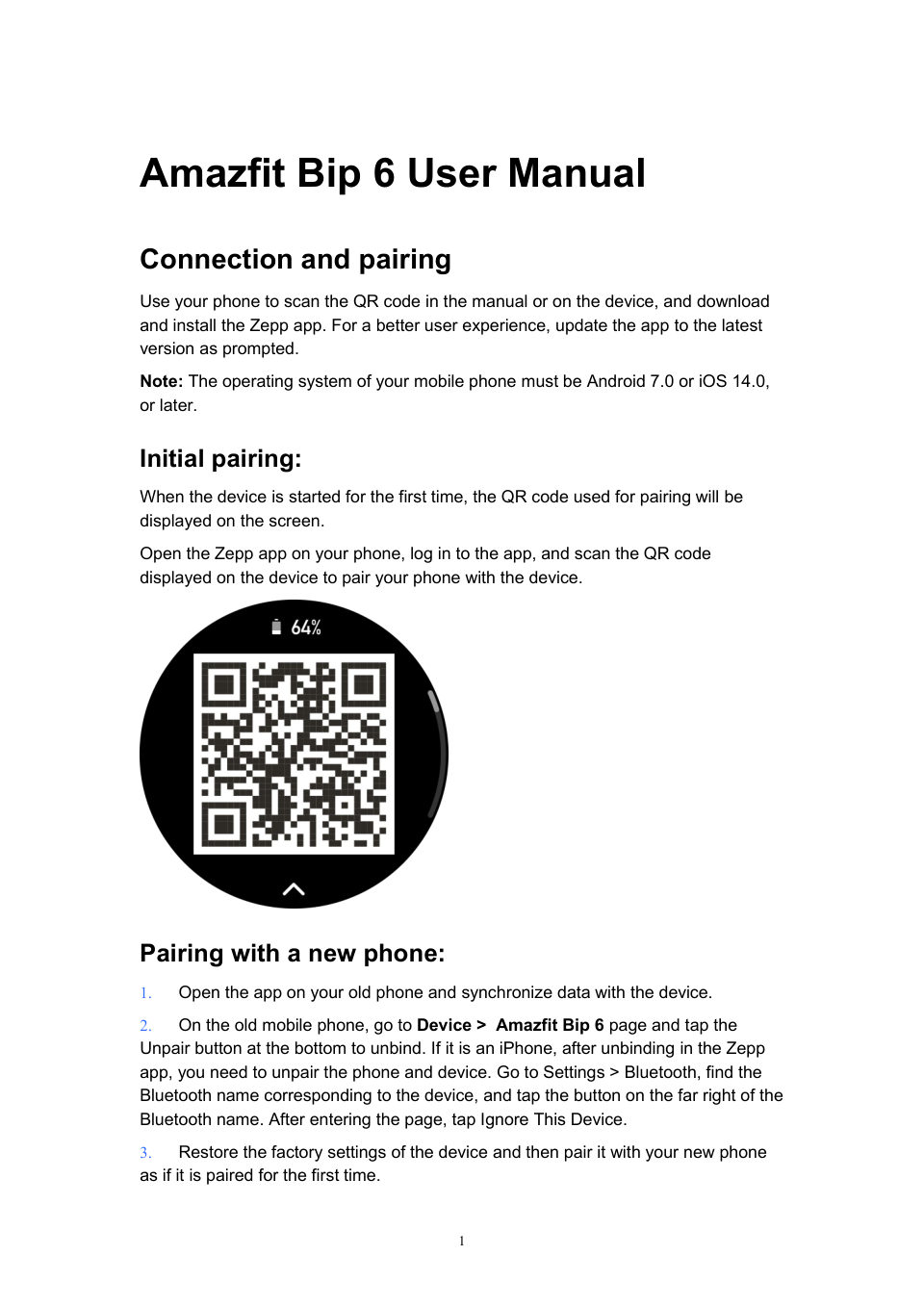
Amazfit Bip 6 User Manual Connection and pairing Use your phone to scan the QR code in the manual or on the device, and download and install the Zepp app. For a better user experience, update the app to the latest versi…
Читать страницуUpdating the system of your watch Keep the device connected to your phone, open the Zepp app, go to Device > Amazfit Bip 6> General> System Update> System Update to view or update the system of your device. We recommend…
Читать страницуSwipe up or down on the Scrolls or switches pages screen Press and hold the Power on, accesses shutdown and restart pages,and bottom button for five performs force restart. seconds or longer Control center Swipe down fr…
Читать страницу3. Select the compilation to edit, and tap this compilation, or swipe up and down on the screen to switch between compilations. 4. After editing, press the upper button to enable the current watch face。 Always On Displa…
Читать страницуto the portrait watch face to edit it again. Tap "Sync" to sync the watch face after each edit. Precautions: The photos you use when creating the watch faces are stored in the app and your device. Please protect your pe…
Читать страницу• Stopwatch (tap the state point to go to the app) • Countdown (tap the state point to go to the app) • In workouts (tap the state point to go to the app) • Charging Notifications and Reminders App alerts Keep the devic…
Читать страницу• Once this feature is enabled, pair the watch with your phone via Bluetooth and maintain the connection to receive calls on the watch. • While the watch and your phone are connected via Bluetooth, you can also make Blu…
Читать страницуQuick access app to enter the editing state, swipe right to the last page, click to add a Quick access app ; 2. In the editing state, press and hold any secondary screen and drag to adjust the sequence of the secondary…
Читать страницу